
Welcome to our vehicle builder tutorial page. We’ll take you through everything you might want to know for building your custom vehicles.
What can you build?
We are currently on version v1.006. So the builder is currently set up for building airships (Zephyrs) and ocean vessels.
We hope to later introduce land vehicles (Bashers) too if our Mad Max inspired setting, Scorched Basin, launches successfully.
Creating your own ship
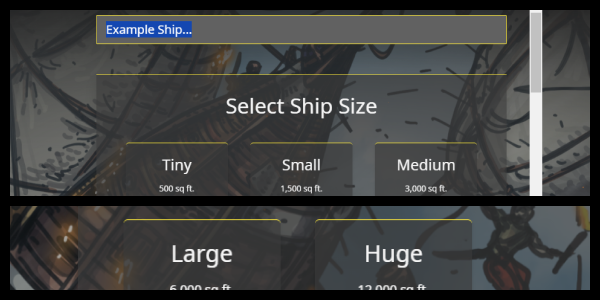
The first step of creating your ship is to name it and choose your ship’s size. You can come back and edit these later if you wish.
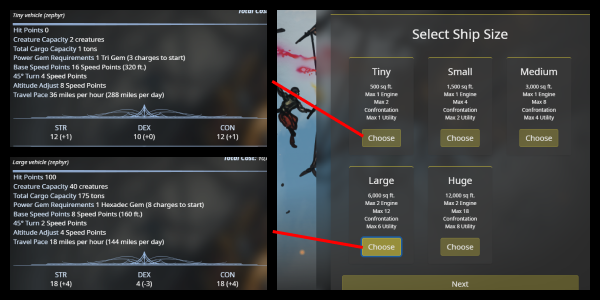
The size of your ship will effect several characteristics. (Capacity, Speed, Base Stats, Etc)
Adding Vehicle Parts/Stations
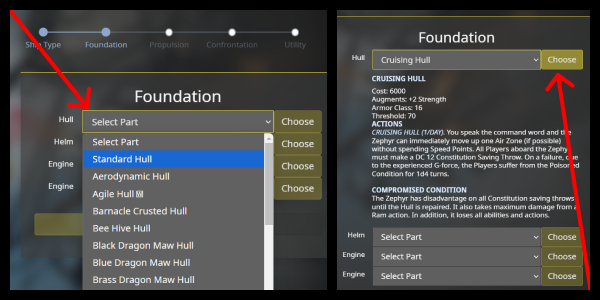
You can select the part/stations you want to add to your ship from a dropdown menu. Once you’ve made a part/station selection, click “choose” to add it to your vehicle.
Viewing Part/Station Information
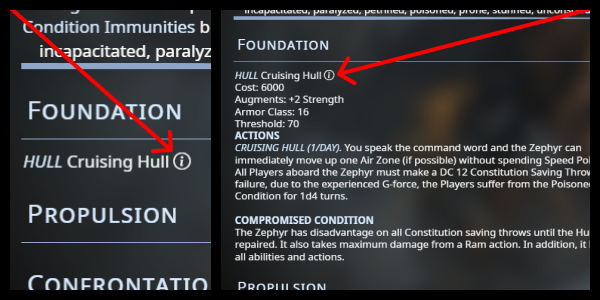
If you want to view the information on a specific part/station you have added to your vehicle. Click on the “information icon”. Click it again to hide the information.
Confrontation Stations
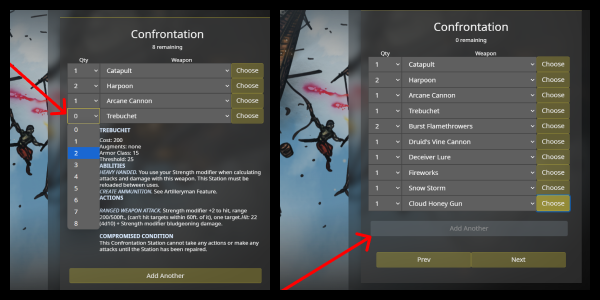
There is a large number of different “Confrontation Stations” that you can add to your vehicle. You can add multiple of the same type using the “Qty” dropdown.
If you like variety, you can use the “Add Another” button, to add extra dropdowns selections.
Utility Stations
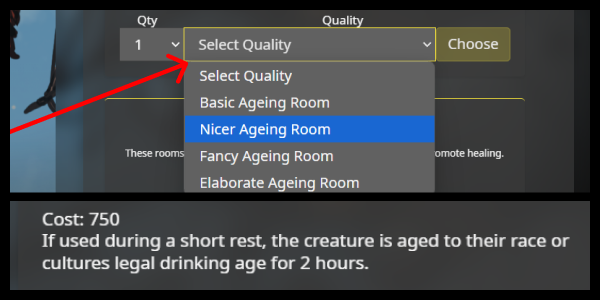
Utility stations vary in “Quality”, ranging from “Basic” (the worst but cheapest) to “Elaborate” (the best but most expensive).
Once you’ve selected the quality and quantity of a utility station, click “choose” to add that to your vehicle.
Save/Export Your Ships
After you have finished building your ship, you can save your work and generate a stat block.
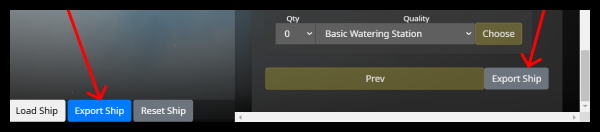
Click one of the “Export Ship” buttons to begin.
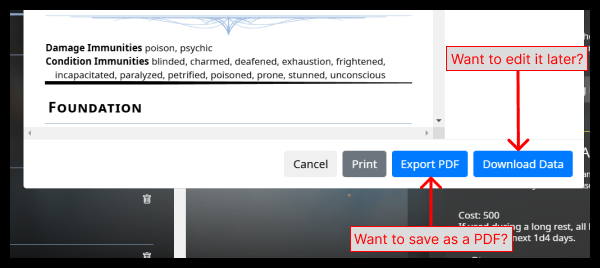
After clicking “Export Ship” you will be presented with a preview of your generated stat block (without individual part information being shown).
If you want to be able to come back later and edit this vehicle, click “Download Data” to download a JSON file containing all of the information for your ship.
Click “Export PDF” to save a PDF with a fully generated stat block.
Load/Edit Your Ships
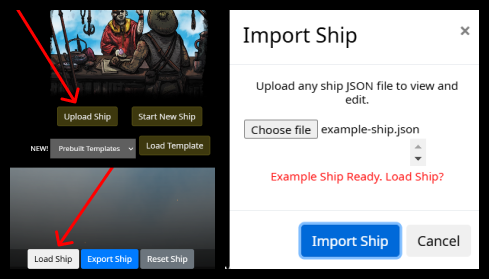
In the first screen of the vehicle builder there is an “Upload Ship” button. In the rest of the vehicle builder at the bottom center portion of the screen, there is a “Load Ship” button.
Click “Upload Ship” or “Load Ship” and upload the JSON file you downloaded earlier, then click “Import Ship”.
This will load your ship into the builder, allowing you to edit it. Don’t forget to save after you are done editing.
That’s the end of the tutorial. If you run into any problems or need some assistance you can contact us by email: team@hatdbuilder.com.
Otherwise, I think you’re ready to get started. Enjoy building and swashbuckling to your hearts content!